Practical dictionary guide
Import your own dictionary into Lectern
Lectern ships with a full English WordNet database for tap-and-hold lookups. If you want a different dictionary — a historical one, a specialist glossary, or a dictionary for a language Lectern does not bundle — you can convert it to one JSON file and import it. Everything stays on your device.
The short answer
Make a JSON file that looks like the example below, save it anywhere on your phone, then open Settings → Dictionary & catalogs → Import dictionary file and pick it. Words your file knows are shown instead of the built-in definition; words it does not know still fall back to WordNet.
What you get out of the box
Long-press a word while reading and Lectern shows a definition without leaving the page or going online. English uses Open English WordNet, bundled in the app: about 152 000 words, with senses, examples and synonyms. That covers ordinary reading well, so import a dictionary when you want something WordNet cannot give you:
- A historical dictionary whose period definitions match the books you read.
- A specialist glossary — legal, medical, nautical, a fandom wiki.
- A dictionary in another language, or a bilingual one that translates into your language.
The file format
One JSON file, called lectern-dict-v1. The whole format is this:
{
  "format": "lectern-dict-v1",
  "language": "en",
  "name": "Webster's 1913",
  "entries": {
    "abate": { "pos": "verb", "def": "Become less intense or widespread." },
    "aberration": { "pos": "noun", "def": "A departure from the norm." }
  }
}
| Field | Required | What it does |
|---|---|---|
format | No | Must start with lectern-dict if present. Anything else is rejected. |
language | Recommended | The base language code (en, nl, de…) this dictionary is for. It decides which books use it. Missing or unusable values fall back to en. |
name | No | Shown under the word count in Settings, so you can tell which file is loaded. |
entries | Yes | Word → { pos, def }. An empty entries object is rejected. |
Lower-case your keys. The word you long-press is lower-cased before it is looked up, but the keys in your file are used exactly as written. A "Aberration" key will never match. Unknown top-level fields are ignored, so you can safely keep a licence or version field from your source data.
Where to get a real dictionary
| Source | Size | Licence |
|---|---|---|
| Webster's 1913 | ~102 000 entries, one long definition each | Public domain |
| Wiktionary extracts (kaikki.org) | Hundreds of thousands, most languages | CC BY-SA |
| Your own glossary | However many you write | Yours |
The easiest starting point is the public-domain Webster's 1913, published as a single word → definition JSON file in the matthewreagan/WebstersEnglishDictionary repository.
Convert it in one command
Save this as convert.py. It turns any flat { "word": "definition" } JSON into the Lectern format, lower-casing keys and collapsing whitespace as it goes.
import json, sys, re

src = json.load(open(sys.argv[1]))
out = {
    "format": "lectern-dict-v1",
    "language": "en",
    "name": "Webster's 1913",
    "entries": {
        w.strip().lower(): {"pos": "", "def": re.sub(r"\s+", " ", d).strip()}
        for w, d in src.items() if d.strip()
    },
}
json.dump(out, open(sys.argv[2], "w"), ensure_ascii=False, separators=(",", ":"))
Then run it and copy the result to your phone:
python3 convert.py webster.json lectern-en-webster.json
That produces a 24 MB file with 102 217 entries. Lectern reads it in a few seconds and keeps it in memory, so files around this size are comfortable. Much larger files still work but use more memory on older phones — if your source has hundreds of thousands of entries, filter it down first.
Import it into Lectern
- Put the file on your phone. Downloads, Drive, a USB cable — anywhere the Android file picker can reach.
- Open Settings. Tap Settings in the bottom bar, then open the Dictionary & catalogs section.
- Tap “Import dictionary file”. Pick your JSON in the file picker. The row shows “Reading dictionary…” while it parses.
- Check the status row. It should read something like “102217 words loaded · imported file”, with your
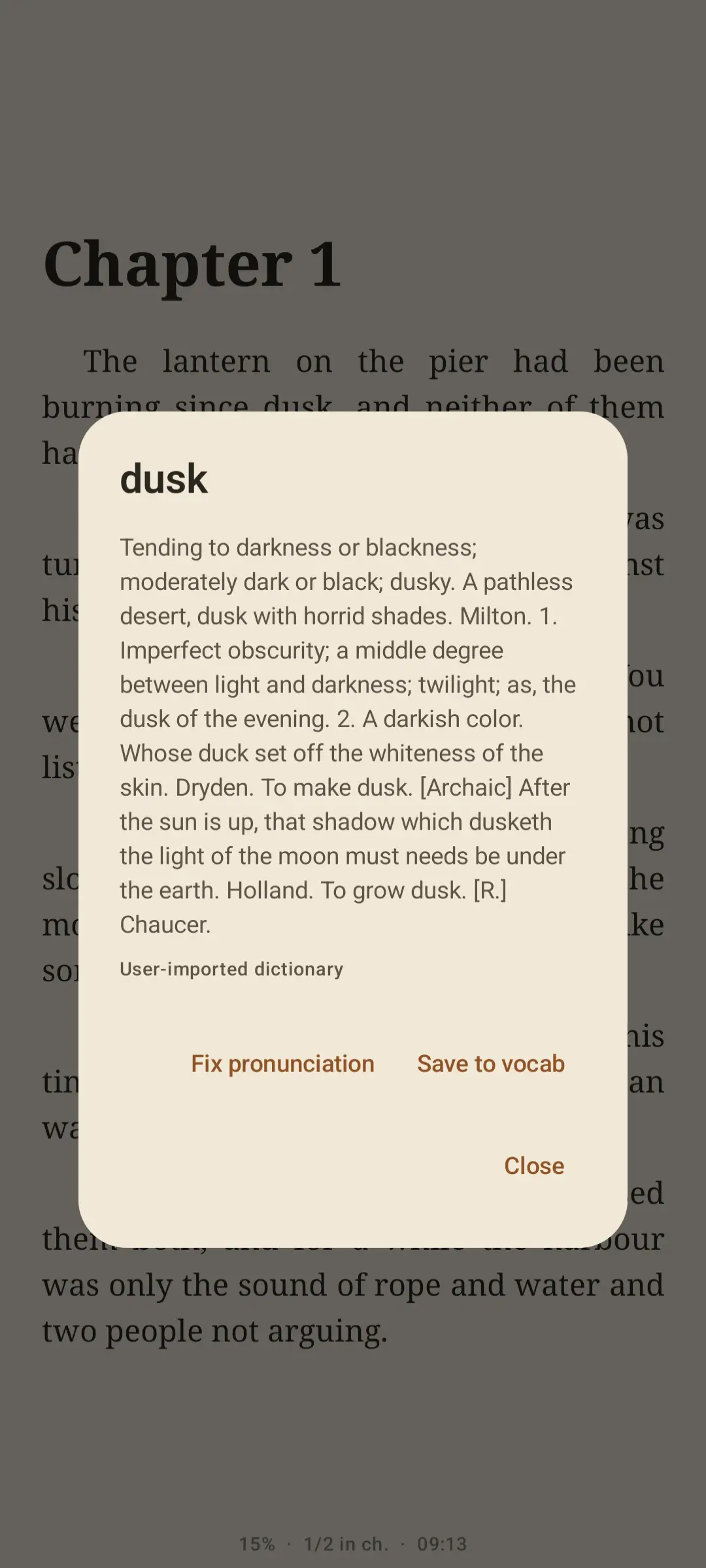
namefield underneath. - Open a book and long-press a word. The popup now shows your definition, labelled User-imported dictionary.
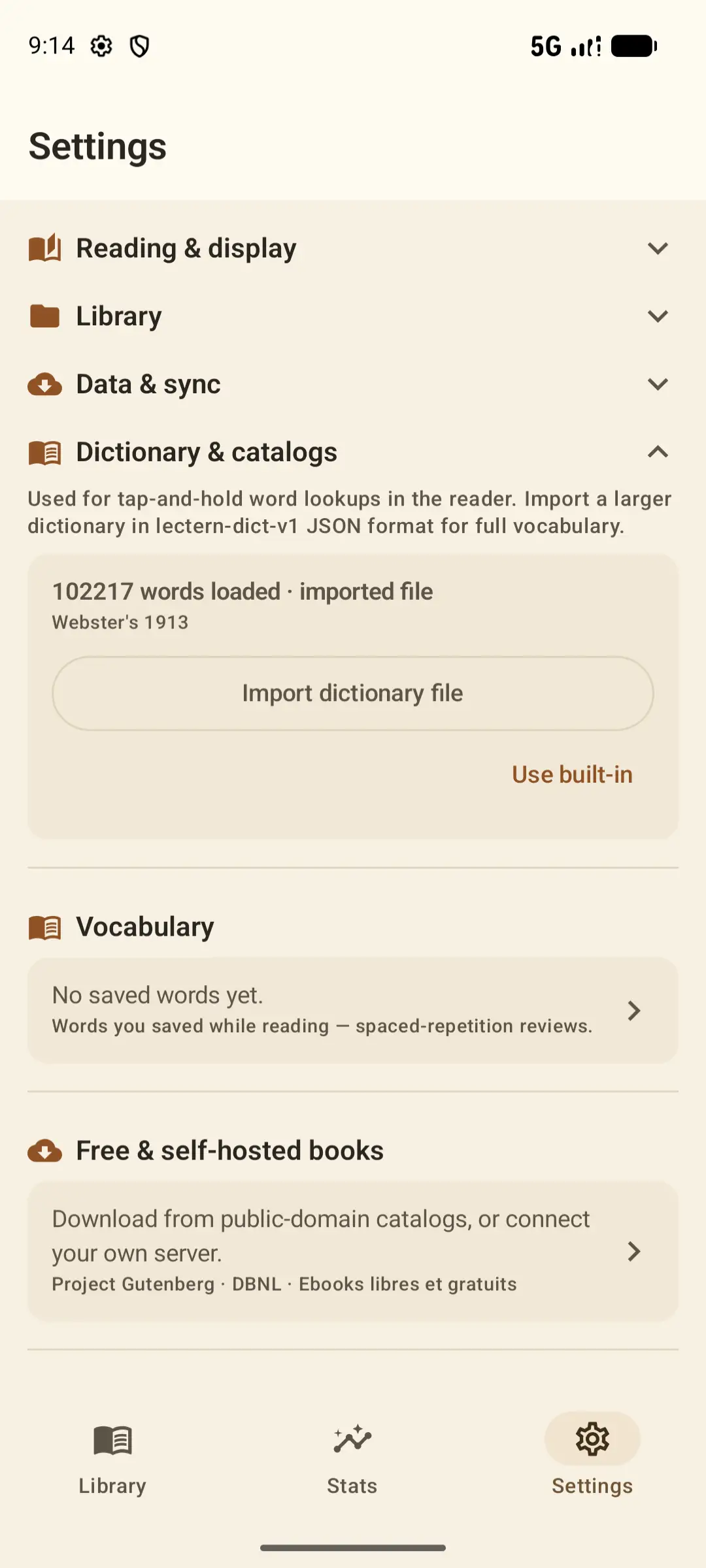
To go back, tap Use built-in. That removes every dictionary you imported and restores the bundled ones.
Dictionaries for other languages
There is only one import button, and it works for every language. The language field inside your JSON decides where the file lands, so a Dutch dictionary needs "language": "nl". Lectern then uses it for books it detects as Dutch, and leaves your English lookups alone. You can keep one imported dictionary per language.
The language is matched on the base code, so a book tagged en-GB or en-US — common in Project Gutenberg and Standard Ebooks files — uses your en dictionary.
Fix the common problems
“Could not parse the file”
The file is not valid JSON, its format is not a lectern-dict value, or entries is empty. Validate the JSON first; a converter that hits an encoding error often writes a truncated file.
The import worked but words are not found
Almost always capitalisation: your keys must be lower-case. Check with a text editor that "abate" and not "Abate" is in the file. Also check the language field: WordNet or FreeDict converters often write a three-letter code such as "eng" or "nld" — use the two-letter code (en, nl). From version 1.25.1 Lectern maps the common three-letter codes automatically, but the two-letter code is always the safe choice.
My dictionary is ignored in one book
Lectern picks the dictionary from the book's language. Open the book's detail sheet to see which language it resolved to, and set your dictionary's language field to match.
Definitions are enormous
Historical dictionaries often pack every sense into one paragraph. The popup scrolls, but if you would rather have short entries, truncate def in the converter before writing the file.
Dictionary import questions
Does importing a dictionary send anything online?
No. The file is copied into Lectern's private storage on your device and read from there. Lectern's reading features work entirely offline.
Does my dictionary replace WordNet completely?
No. Your file wins for every word it contains. Words it does not contain still fall back to the built-in WordNet, so importing can only add coverage.
Can I import several dictionaries at once?
One per language. Importing a second English dictionary replaces the first; importing a Dutch one sits alongside your English one.
How big can the file be?
A 24 MB file with about 100 000 entries imports in seconds and runs fine. Beyond that, memory use on older devices becomes the limit rather than any hard cap.
Can I use a StarDict or DSL dictionary?
Not directly — Lectern reads only lectern-dict-v1 JSON. Most formats can be converted with a short script, and the converter above is a working starting point.
Read on
More about words while reading

Your words, your dictionary
Import once, then look up any word without leaving the page or going online.
Get it onGoogle Play